 Chrome extension
Your meetings, written up and working for you.
The WorkSwarm Meeting Recorder sends your agent into Google Meet, Zoom, and Microsoft Teams calls, then files the transcript in your workspace where the rest of your agents can use it. Setup takes about three minutes.
Chrome 116+ and Chromium browsers. Free with your WorkSwarm account.
Install, sign in, record. Step by step.
Install it from the Chrome Web Store
Open the WorkSwarm Meeting Recorder listing and choose Add to Chrome. Chrome shows exactly what the extension can access before it installs anything - the full list is further down this page.
Chrome may say the extension is not yet trusted by Enhanced Safe Browsing. That is a reputation counter on a brand-new listing, not a warning about what the extension does - choose Continue to install.
Pin it to your toolbar
Click the extensions puzzle icon at the right of the address bar, find Workswarm, and hit the pin. The icon is how you reach the recorder in a call, so an unpinned extension is a hidden one.
Sign in to WorkSwarm
Click the Workswarm icon and choose Sign in. Chrome opens a WorkSwarm sign-in window; approve it and the window closes on its own. The extension receives a token, never your password.
No WorkSwarm account yet? Create one first at app.workswarm.ai, then come back and sign in.
Finish setup in your workspace
The popup shows what is still missing and links straight to the step. Three things make the recorder useful: your calendar, your number, and a name for the agent that will sit in your meetings.
- 1
Connect Google
Without your calendar nothing joins on its own.
- 2
Verify your number
Needed for WhatsApp and call reminders.
- 3
Name your agent
Otherwise it joins the call under your own name.
Join a call - the recorder speaks up
Open a Google Meet, Zoom, or Teams call and the recorder notices once you are actually in it. A banner appears in the top-right corner. Nothing starts until you press the button.
Prefer it hands-off? Turn on Auto-record meetings on join and the banner becomes a ten-second notice with Cancel instead.
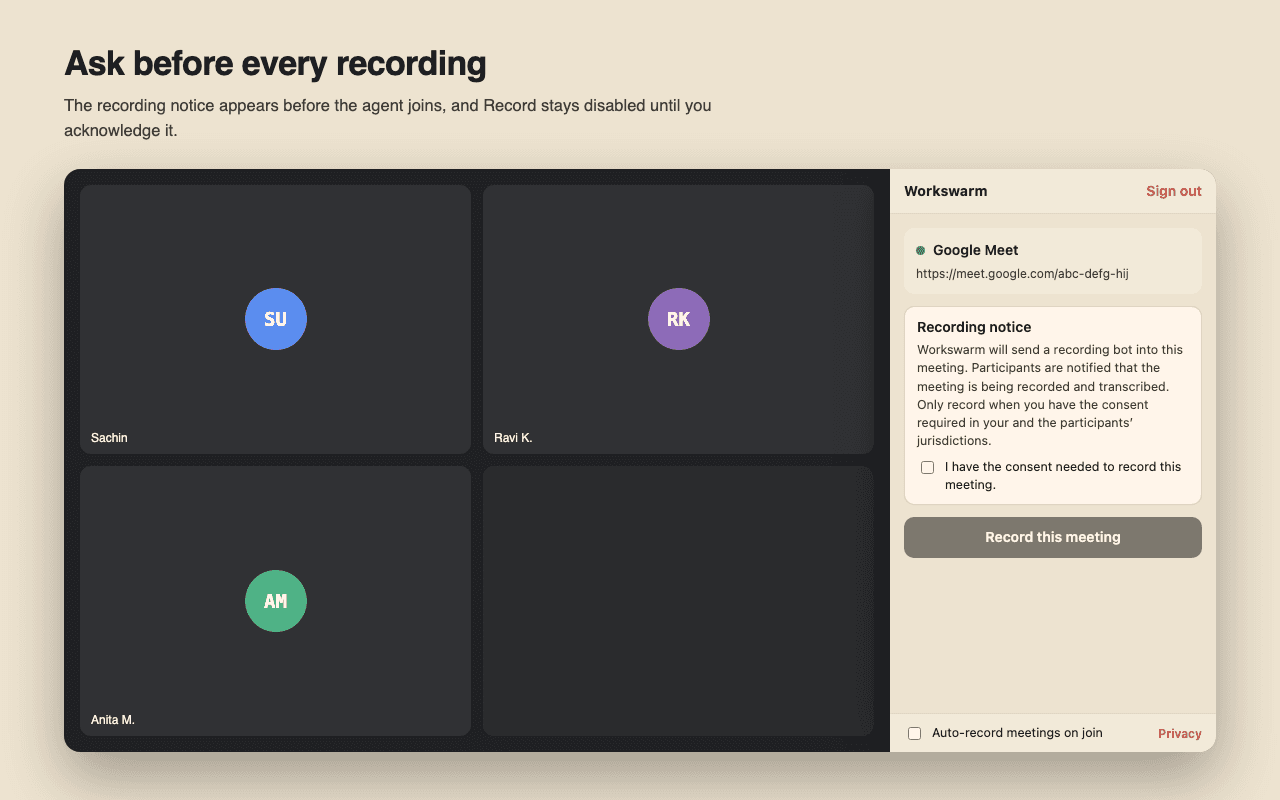
Confirm consent, then record
The recording notice is shown every time, and Record stays disabled until you acknowledge it. WorkSwarm then sends the agent into the meeting as a visible participant - your browser records nothing.
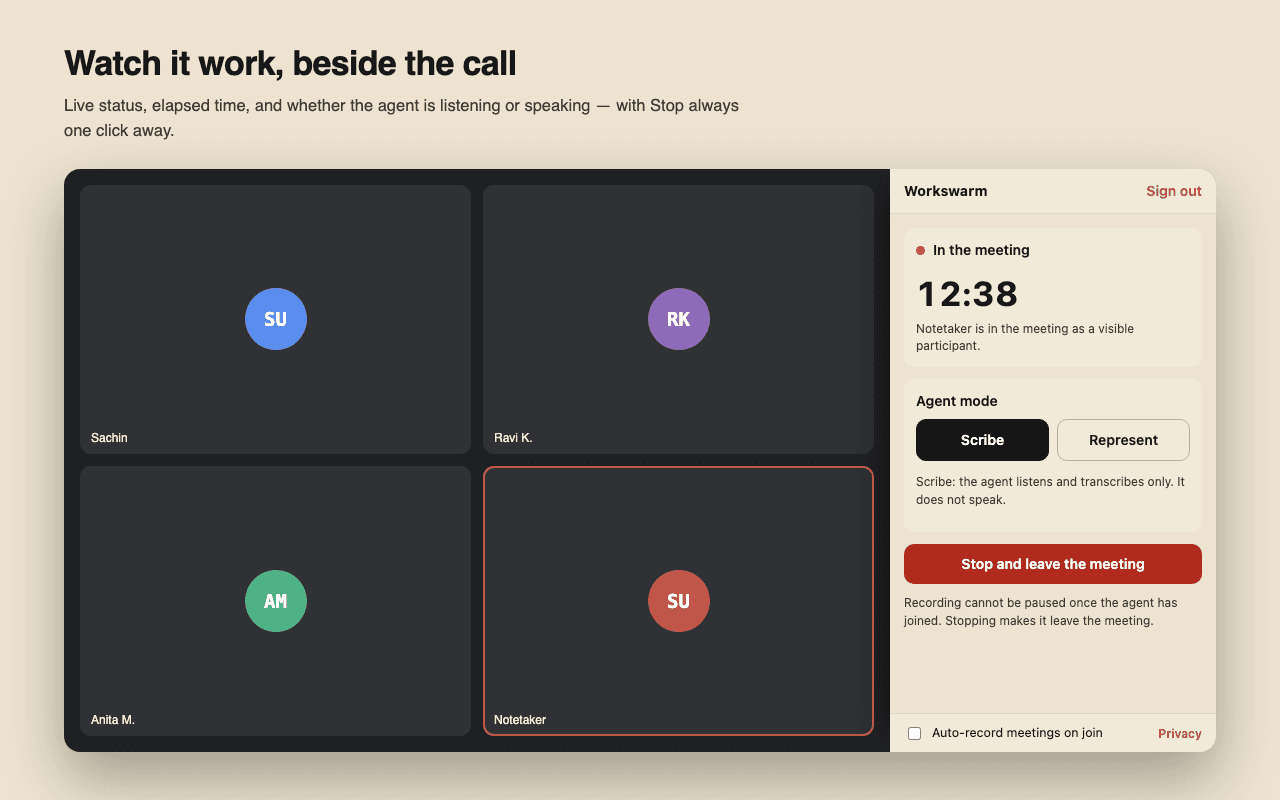
Watch it work, beside the call
The side panel shows live status, elapsed time, and whether the agent is listening (Scribe) or able to speak on your behalf (Represent). Stop is always one click away, on every surface.
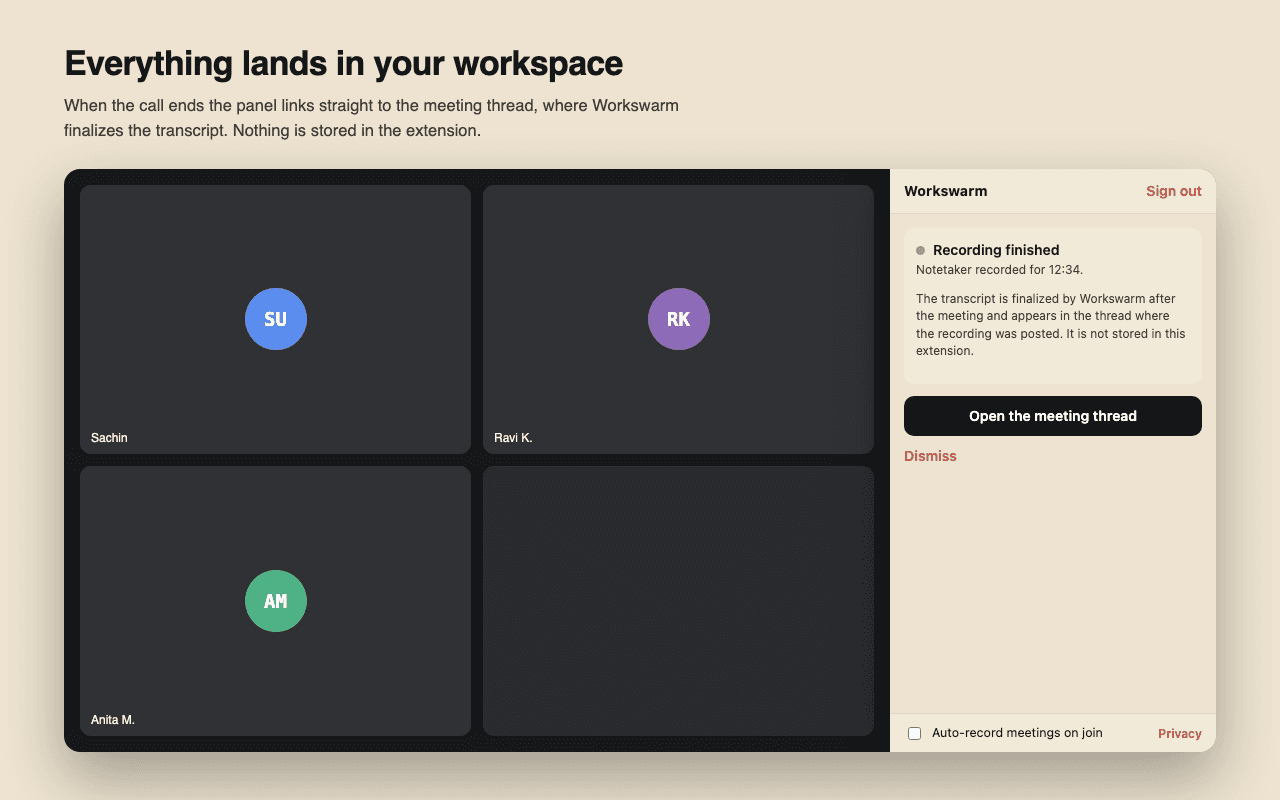
Everything lands in your workspace
When the call ends the panel links straight to the meeting thread, where WorkSwarm finalizes the transcript and your agents can act on it. Nothing is stored in the extension.
What it asks for, and why
Chrome lists these at install time. This is the whole list - the extension requests no optional permissions later, and it captures no audio, video, or screen content at any point.
storage
Remembers that you are signed in, plus the live session per tab so a Stop button exists on every surface.
identity
Opens the WorkSwarm sign-in window. The extension never sees or stores your password.
sidePanel
Draws the live panel beside the call: elapsed time, agent mode, Stop.
api.workswarm.ai
The only host the extension talks to. Nothing is sent anywhere else.
Meet, Zoom, Teams pages
A read-only detector that watches for the leave-call control so it knows you are in a call. It captures no audio, no video, and no page content.
Read the privacy policy for how meeting data is stored and retained.
Recording is a consent decision, so we make you take it
WorkSwarm sends a recording agent into the meeting as a visible participant, and the meeting platform tells everyone it is there. That is deliberate: a recorder nobody can see is a recorder nobody agreed to.
The recording notice appears before every recording, and the button that starts one is also the acknowledgement that you have the consent your jurisdiction - and your participants' - requires. Two-party consent jurisdictions do not care how your settings are configured, so the notice is never suppressed.
Questions people actually ask
Does the extension record my screen or microphone?
No. It captures no media at all. It detects that you are in a call and asks WorkSwarm to send a recording agent, which joins the meeting as a visible participant - the same way a person joins.
Do other participants know?
Yes. The agent appears in the participant list under the name you give it, and the meeting platform shows it like any other attendee. Recording laws differ by jurisdiction, so the extension asks you to confirm you have the consent your jurisdiction requires before it starts.
Can I stop a recording once it starts?
Yes, from the side panel, the toolbar popup, or - if you closed the tab - from the orphaned-session list on any WorkSwarm surface. Stopping makes the agent leave the meeting.
What if I turn on auto-record?
When you join a call the extension shows a ten-second notice in the top-right corner with a Cancel button. Cancel and nothing happens. It only starts on calls you have actually joined - the pre-join lobby is not a call.
Where does the transcript go?
Into the meeting thread in your WorkSwarm workspace, finalized server-side after the call. The extension keeps no copy of it.
Which browsers work?
Chrome 116 or newer, and Chromium browsers that support Manifest V3 side panels (Edge, Brave, Arc). Safari and Firefox are not supported.
Put it on your next call.
Install, sign in, and your next meeting writes itself up into your workspace.